Workspace Work Item Types #417
There are no files selected for viewing
This file contains hidden or bidirectional Unicode text that may be interpreted or compiled differently than what appears below. To review, open the file in an editor that reveals hidden Unicode characters.
Learn more about bidirectional Unicode characters
This file contains hidden or bidirectional Unicode text that may be interpreted or compiled differently than what appears below. To review, open the file in an editor that reveals hidden Unicode characters.
Learn more about bidirectional Unicode characters

This file contains hidden or bidirectional Unicode text that may be interpreted or compiled differently than what appears below. To review, open the file in an editor that reveals hidden Unicode characters.
Learn more about bidirectional Unicode characters
| Original file line number | Diff line number | Diff line change |
|---|---|---|
| @@ -0,0 +1,154 @@ | ||
| --- | ||
| title: Workspace Work Item Types | ||
| description: Define work item types and custom properties at the workspace level, then import them into projects for consistent tracking across your organization. | ||
| --- | ||
|
|
||
| # Manage work item types centrally <Badge type="warning" text="Enterprise Grid" /> | ||
|
|
||
| On the Enterprise Grid, work item types are defined at the workspace level by Workspace Admins and imported into projects. This ensures consistency — a "Bug" in one project has the same properties and structure as a "Bug" in another — while keeping centralized governance over how work is tracked across your organization. | ||
|
|
||
| :::info | ||
| On Pro and Business plans, work item types are managed at the project level. See [Project Work Item Types](/core-concepts/issues/issue-types). | ||
| ::: | ||
|
|
||
| ## How work item types work | ||
|
|
||
| Work item types are workspace-level entities. This means they're defined once by Workspace Admins and can be reused across any project in the workspace. This ensures consistency — a "Bug" in one project has the same properties and structure as a "Bug" in another. | ||
|
|
||
| Every workspace starts with a default type called **Task**. This is the base type for all work items and cannot be deleted. You can add custom properties to it, but it's always available as a fallback. | ||
|
|
||
| When you create additional types at the workspace level, they don't automatically appear in projects. Project Admins import the types they need from the workspace library, making only the relevant types available in their project. This keeps projects focused while maintaining centralized governance. | ||
|
|
||
| The type assigned to a work item determines its available properties and its behavior across workflows. Changes made to a type at the workspace level reflect across all projects using that type — there's no duplication. | ||
|
|
||
| :::tip | ||
| If you had work item types configured at the project level before upgrading to the Enterprise Grid, they've been rolled up to the workspace level. Project Admins can no longer create or edit types directly — that's now handled by Workspace Admins. Your existing types and properties are preserved and available in the workspace library. | ||
| ::: | ||
|
|
||
| ## Turn on work item types | ||
|
|
||
| :::warning | ||
| Work item types cannot be disabled once enabled for a workspace. | ||
| ::: | ||
|
|
||
| > **Role**: Workspace Admin | ||
|
|
||
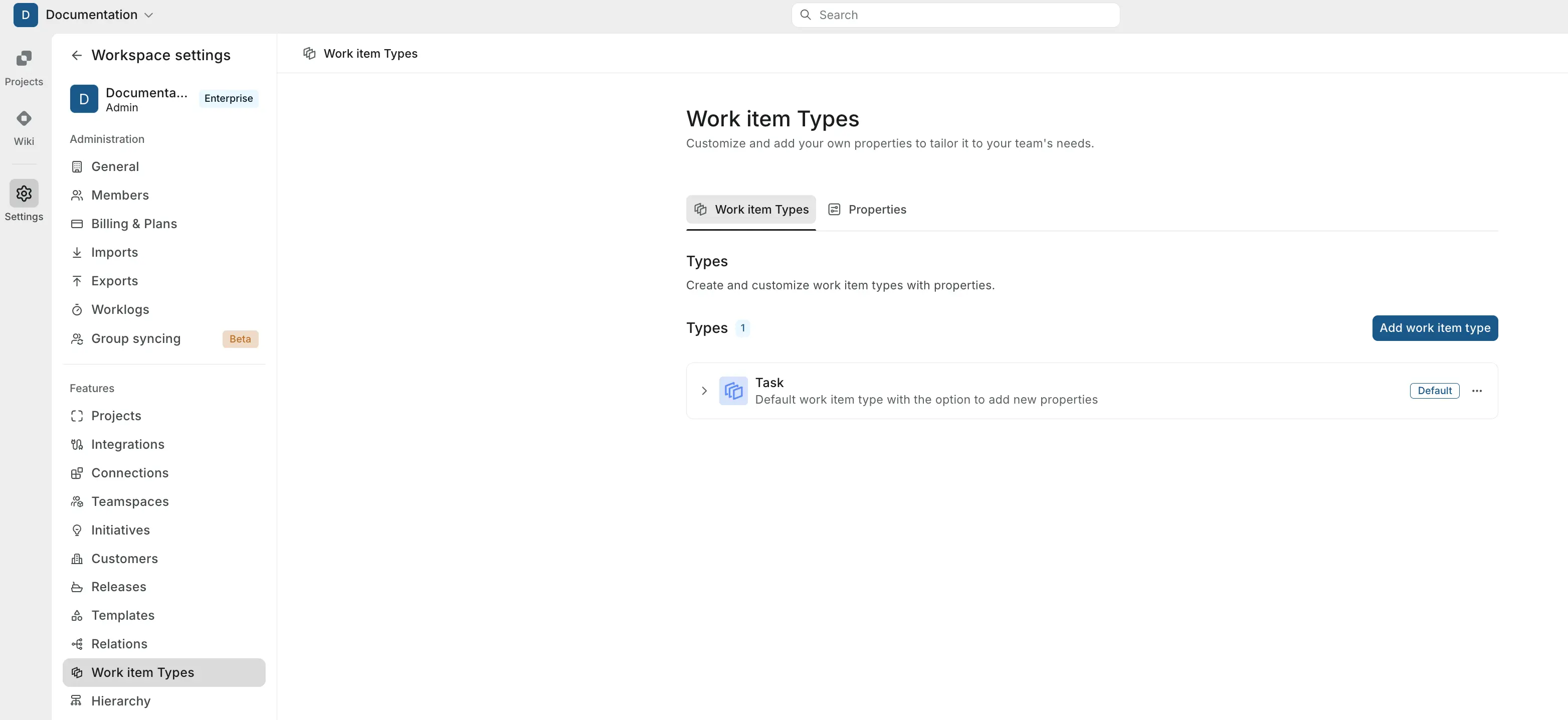
| 1. Go to **Workspace Settings > Work item Types**. | ||
| 2. Toggle on **Turn on Work item types for this workspace**. | ||
|
|
||
| Once enabled, you'll see the **Work item Types** and **Properties** tabs. The default **Task** type is already listed. | ||
|
|
||
|  | ||
|
|
||
| ## Create a work item type | ||
|
|
||
| > **Role**: Workspace Admin | ||
|
|
||
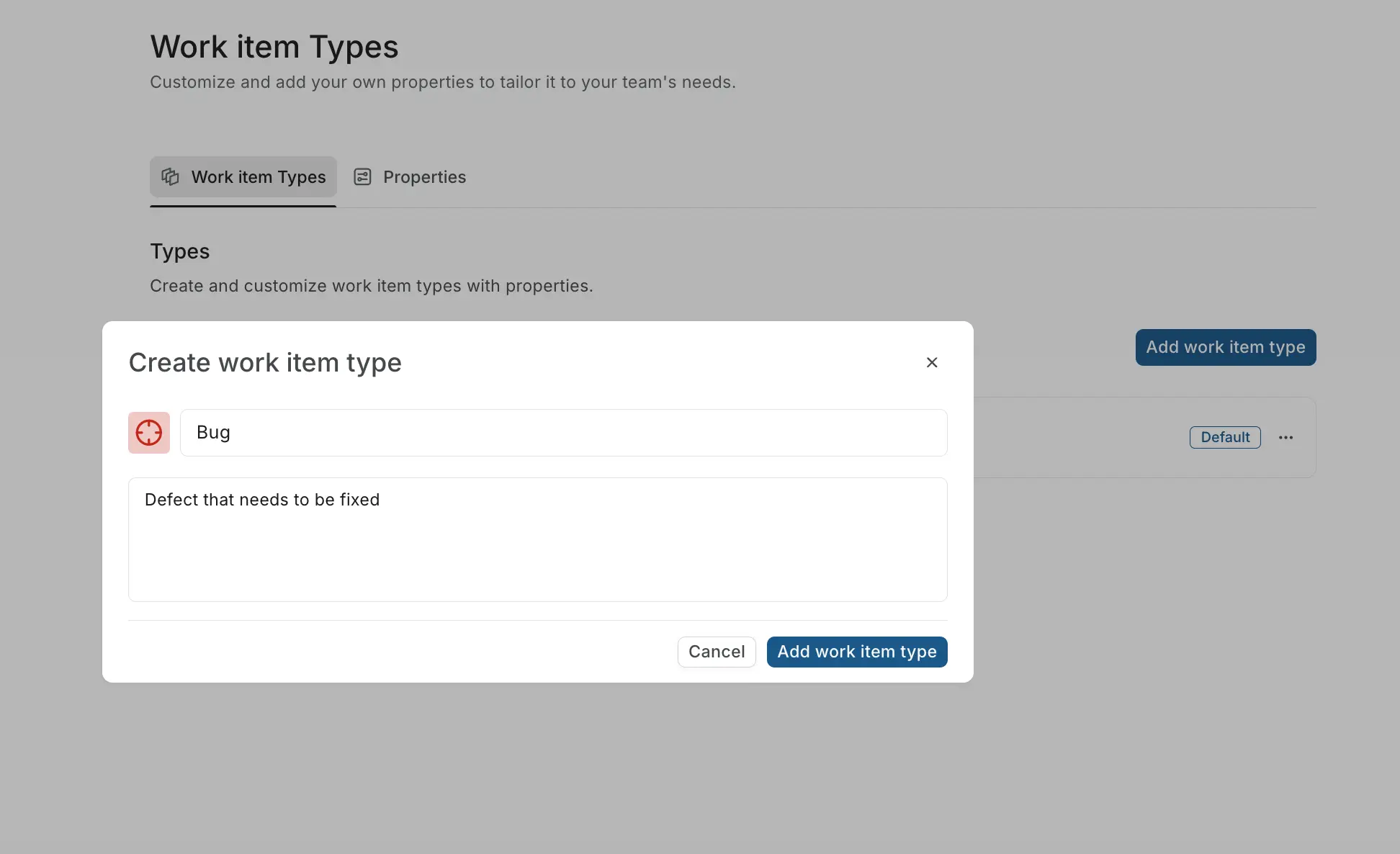
| 1. On the **Work item Types** tab, click **Add work item type**. | ||
| 2. In the modal, enter a unique name and a description that explains what this type is for and when to use it. | ||
| 3. Click the icon to the left of the name to choose a custom icon and color. | ||
| 4. Click **Add work item type**. | ||
|
|
||
|  | ||
|
|
||
| The new type appears in the list. Use the toggle next to it to control whether project members can select it when creating work items. | ||
|
|
||
| ## Create custom properties | ||
|
|
||
| > **Role**: Workspace Admin | ||
|
|
||
| Custom properties are fields you define at the workspace level and attach to one or more work item types. A property like "Severity" can be used across both "Bug" and "Incident" types without duplicating it. Properties are not automatically applied to all types — you explicitly choose which properties belong to which type. | ||
|
|
||
| ### Create a property | ||
|
|
||
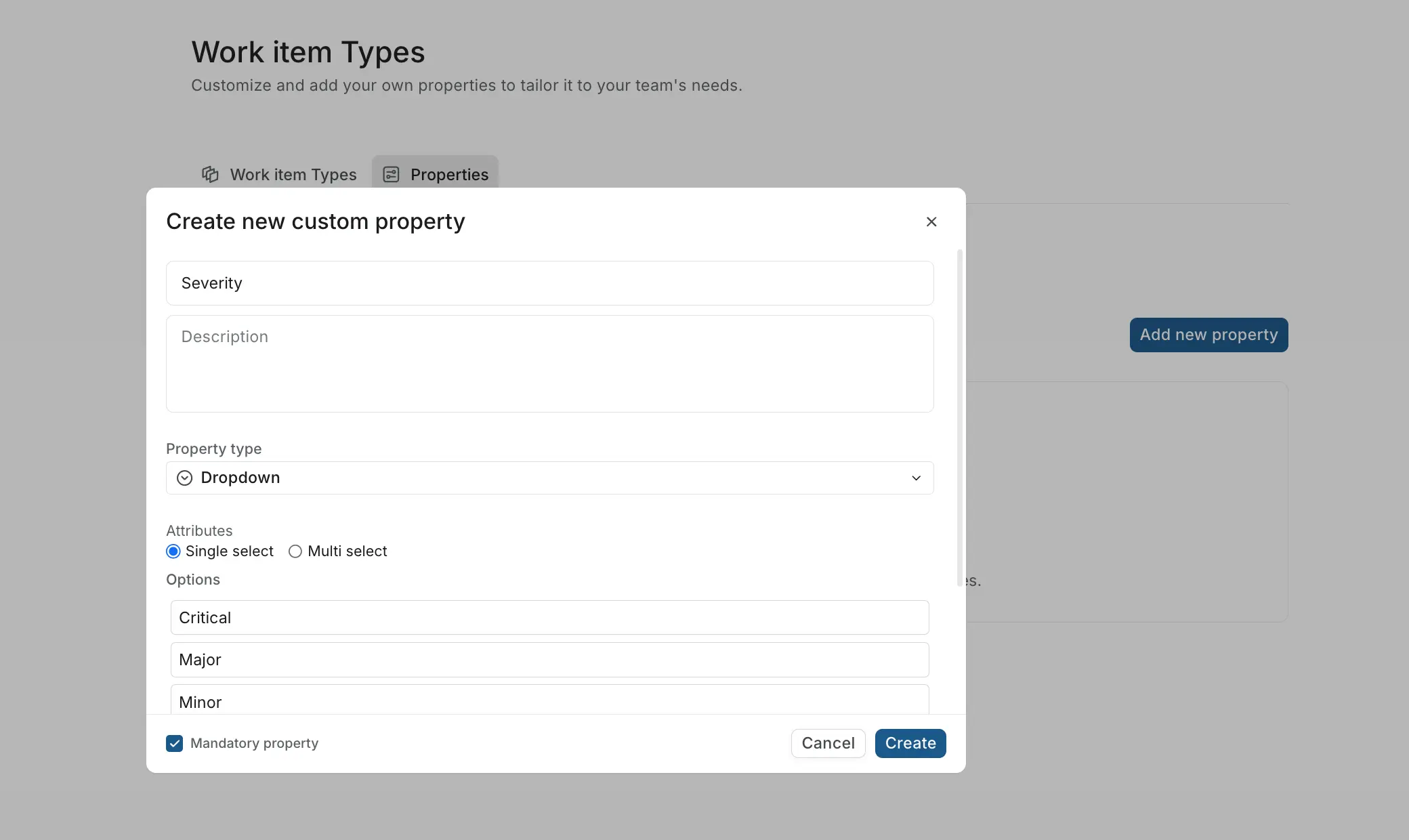
| 1. Switch to the **Properties** tab. | ||
| 2. Click **Add new property**. | ||
| 3. Fill in the **Title** and **Description**. | ||
| 4. Select a **Property type** from the dropdown. | ||
| 5. Check **Mandatory property** if this field should be required when creating a work item of the linked type. | ||
| 6. Click **Create**. | ||
|
|
||
|  | ||
|
|
||
| The property is now available to attach to any work item type. | ||
|
|
||
| ### Attach properties to a type | ||
|
|
||
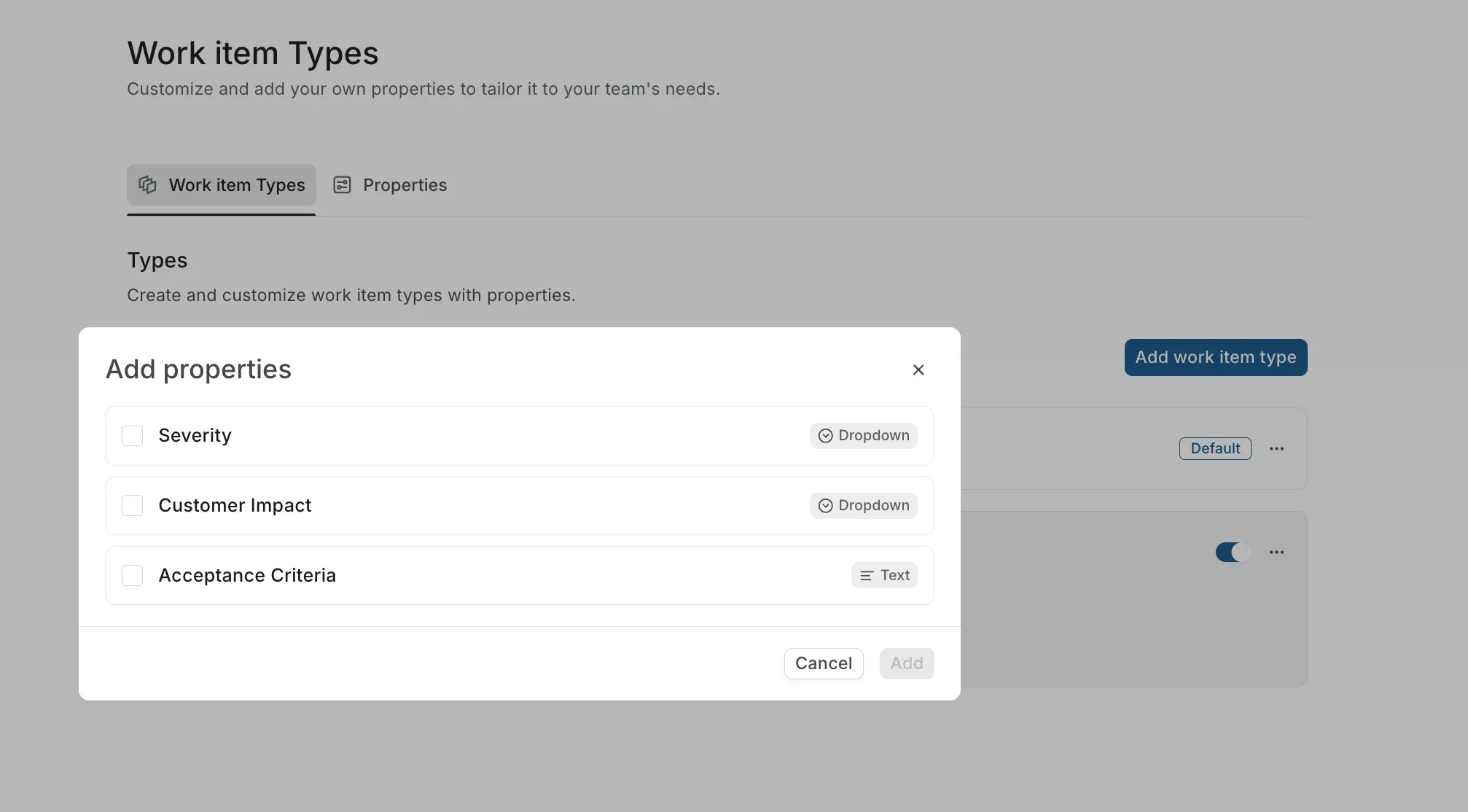
| 1. Switch to the **Work item Types** tab. | ||
| 2. Expand the type you want to add properties to by clicking its arrow. | ||
| 3. Click **+ Add properties**. | ||
| 4. In the modal, select the properties you want to attach and click **Add**. | ||
|
|
||
|  | ||
|
|
||
| If the modal shows "No properties available," either all existing properties are already linked to that type, or no custom properties have been created at the workspace level yet. Create new properties from the **Properties** tab first. | ||
|
|
||
| ### Property types | ||
|
|
||
| | Property type | Description | | ||
| | --- | --- | | ||
| | **Text** | Single line or paragraph text. Can be set to read-only with a default value. Read-only properties cannot be marked as mandatory. | | ||
| | **Number** | Numeric value with an optional default. | | ||
| | **Dropdown** | Single-select or multi-select from a defined list of options. | | ||
| | **Boolean** | True/false toggle. Defaults to false. Cannot be marked as mandatory. | | ||
| | **Date** | Date picker with a consistent format across all properties. | | ||
| | **Member picker** | Single-select or multi-select from the list of project members. | | ||
| | **Release picker** | Select from available Releases in the project. | | ||
| | **URL** | A URL field for linking to external resources. | | ||
|
|
||
| ## Import types into a project | ||
|
|
||
| > **Role**: Project Admin | ||
|
|
||
| Projects don't create their own types — they import what's defined at the workspace level. Imported types are linked to the workspace definition, so updates made by Workspace Admins are reflected automatically. | ||
|
|
||
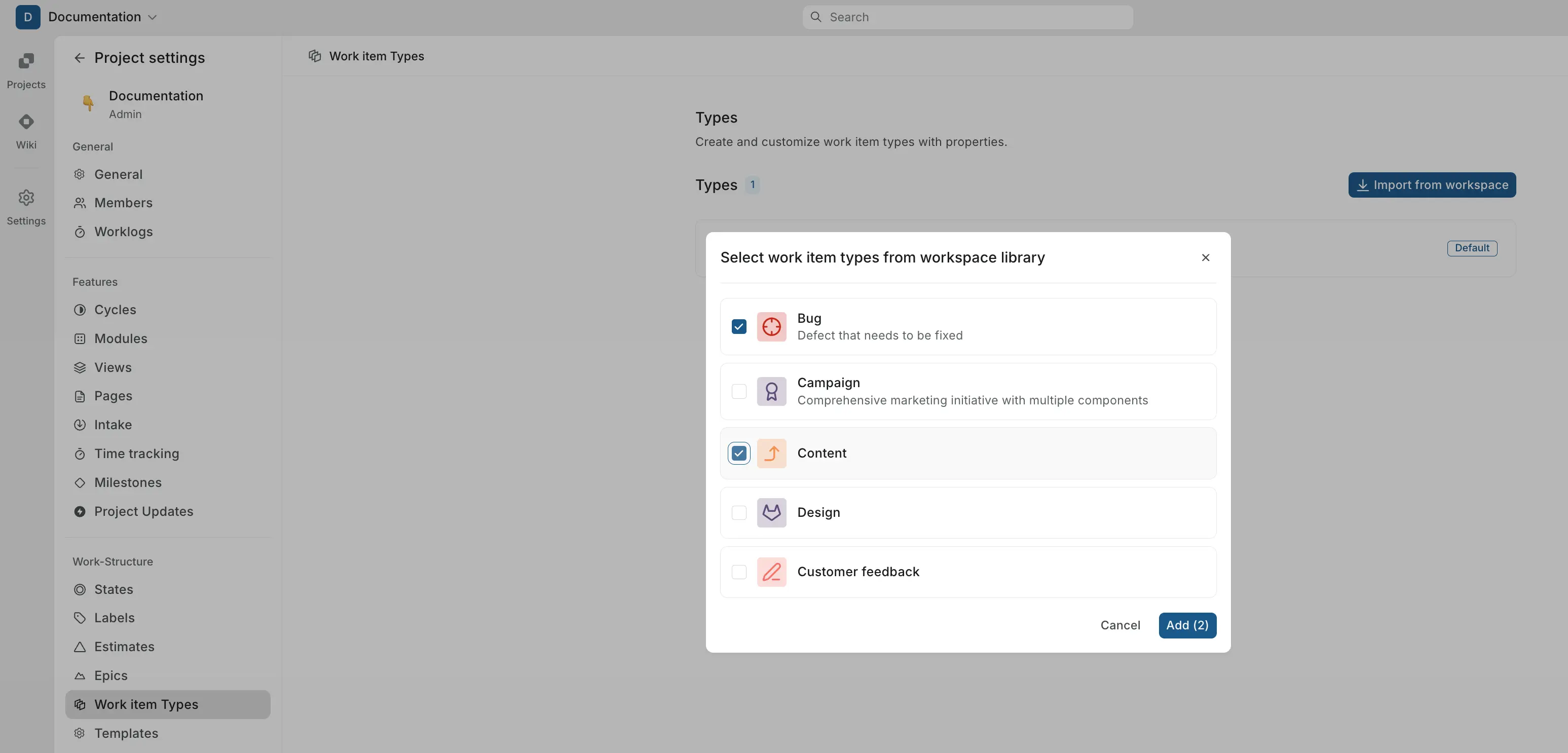
| 1. Go to **Project Settings > Work item Types**. | ||
| 2. Click **Import from workspace**. | ||
| 3. In the modal, select the types you want to bring into this project from the workspace library. | ||
| 4. Click **Add**. | ||
|
|
||
|  | ||
|
|
||
| The imported types now appear in the project's type list alongside the default **Task** type. Project members can select them when creating work items. | ||
|
|
||
| Only types that have been imported into a project are available when creating or editing work items in that project. | ||
|
|
||
| ## Use work item types | ||
|
|
||
| Once types are available in a project, any project member can use them. | ||
|
|
||
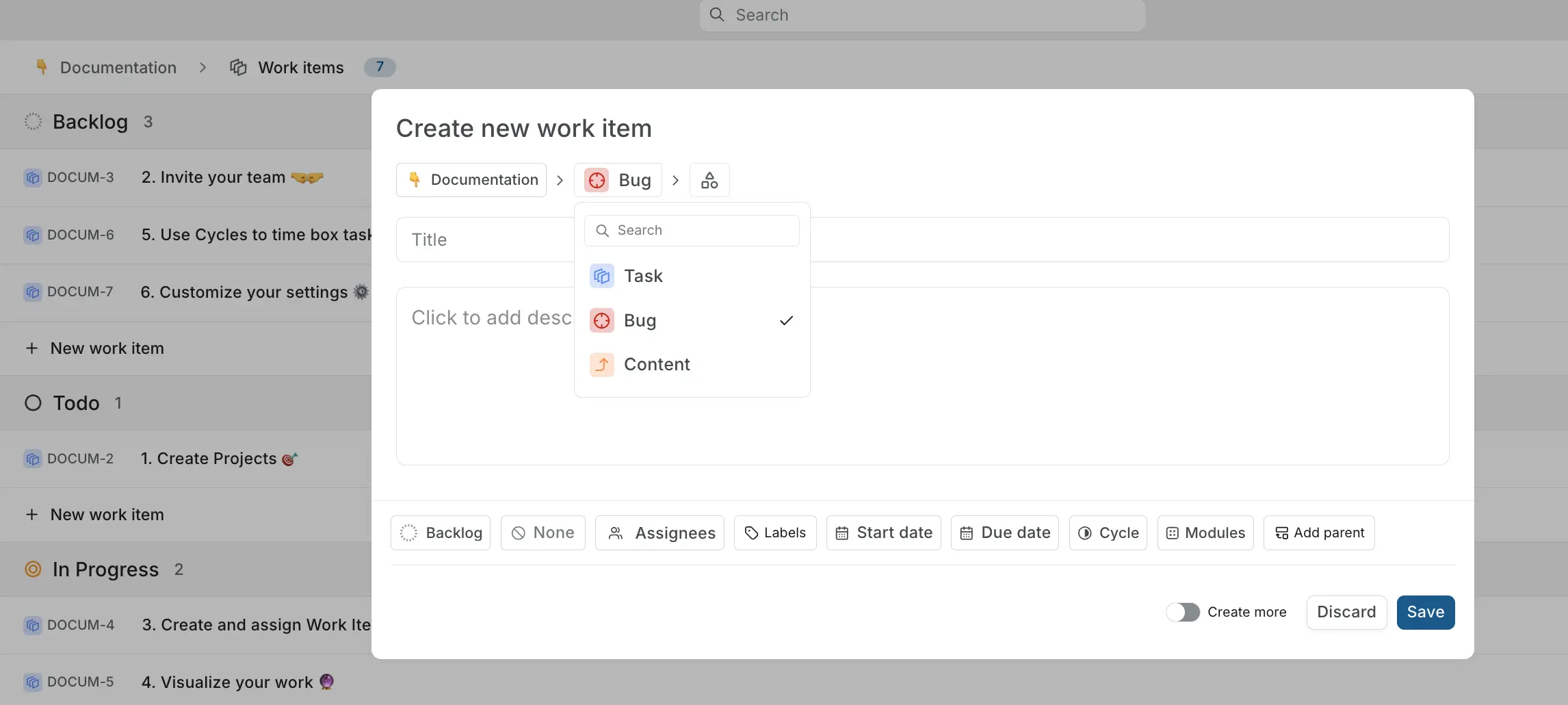
| When creating a new work item, select the type from the dropdown at the top-left of the create modal. The modal updates to show the properties associated with that type. Any mandatory properties must be filled before the work item can be created. | ||
|
|
||
|  | ||
|
|
||
| When viewing work items, the type is displayed with its icon next to the work item title. Custom properties appear in the properties panel, and changes to property values are tracked in the work item's activity trail. | ||
|
|
||
| ### Switch a work item's type | ||
|
|
||
| 1. Open the work item. | ||
| 2. Hover to the right of the work item ID and click **Switch work item type**. Alternatively, click **Edit** from the work item's three-dot menu. | ||
| 3. Choose the new type from the dropdown. | ||
| 4. Click **Update**. | ||
|
|
||
| ### Bulk update types | ||
|
|
||
| 1. Switch to the **Spreadsheet** layout on the Work items page. | ||
| 2. Select the work items you want to update. | ||
| 3. Open the **Work item type** dropdown at the bottom of the screen and pick the new type. | ||
| 4. Click **Update**. | ||
|
|
||
| ## Disable a work item type | ||
|
|
||
| > **Role**: Workspace Admin | ||
|
|
||
| You can temporarily prevent new work items from being created with a specific type without affecting existing ones. On the **Work item Types** tab, toggle off the switch next to the type you want to disable. | ||
|
|
||
| Existing work items of that type are unaffected — they retain their type and properties. The type simply won't appear as an option when creating new work items. | ||
|
|
||
| ## Delete a work item type | ||
|
|
||
| > **Role**: Workspace Admin | ||
|
|
||
| Deleting a type removes it from the workspace library and from every project that imported it. Existing work items of that type will need to be reassigned to another type. | ||
|
|
||
| Before deleting, consider whether disabling the type would be a better option — it preserves existing work items while preventing new ones from being created. |
This file contains hidden or bidirectional Unicode text that may be interpreted or compiled differently than what appears below. To review, open the file in an editor that reveals hidden Unicode characters.
Learn more about bidirectional Unicode characters
| Original file line number | Diff line number | Diff line change |
|---|---|---|
|
|
@@ -8,7 +8,7 @@ description: Learn how Plane's per-seat billing works, and how billing cycles, u | |
|
|
||
| Plane uses a per-seat billing model for paid plans. You pay for the number of seats in your workspace, not the total number of users. Understanding this distinction helps you manage costs effectively while giving you the flexibility to map seats to your teams. | ||
|
|
||
| ## Why per-seat instead of per-user | ||
|
|
||
| Most SaaS tools charge per user. Every person who accesses the system counts toward your bill. Plane takes a different approach. | ||
|
|
||
|
|
||
Oops, something went wrong.
Add this suggestion to a batch that can be applied as a single commit.
This suggestion is invalid because no changes were made to the code.
Suggestions cannot be applied while the pull request is closed.
Suggestions cannot be applied while viewing a subset of changes.
Only one suggestion per line can be applied in a batch.
Add this suggestion to a batch that can be applied as a single commit.
Applying suggestions on deleted lines is not supported.
You must change the existing code in this line in order to create a valid suggestion.
Outdated suggestions cannot be applied.
This suggestion has been applied or marked resolved.
Suggestions cannot be applied from pending reviews.
Suggestions cannot be applied on multi-line comments.
Suggestions cannot be applied while the pull request is queued to merge.
Suggestion cannot be applied right now. Please check back later.
There was a problem hiding this comment.
Choose a reason for hiding this comment
The reason will be displayed to describe this comment to others. Learn more.
Inconsistent default type references throughout the document.
Line 8 states the default type is
Task, but the document still referencesIssueas the default in multiple places:Issue"Issueis selected"Either update all references to
Taskfor consistency, or verify which is correct and update accordingly.🤖 Prompt for AI Agents