




xAI .NET SDK based on the official gRPC API reference from xAI with integration for Microsoft.Extensions.AI and Microsoft.Agents.AI.
To ensure the long-term sustainability of this project, users of this package who generate revenue must pay an Open Source Maintenance Fee. While the source code is freely available under the terms of the License, this package and other aspects of the project require adherence to the Maintenance Fee.
To pay the Maintenance Fee, become a Sponsor at the proper OSMF tier. A single fee covers all of Devlooped packages.
xAI/Grok integration for Microsoft.Extensions.AI IChatClient with full support for all
agentic tools:
var chat = new GrokClient(Environment.GetEnvironmentVariable("XAI_API_KEY")!)
    .AsIChatClient("grok-4.1-fast");

var images = new GrokClient(Environment.GetEnvironmentVariable("XAI_API_KEY")!)
    .AsIImageGenerator("grok-imagine-image");

var speech = new GrokClient(Environment.GetEnvironmentVariable("XAI_API_KEY")!)
    .AsITextToSpeechClient();

var audio = await speech.GetAudioAsync("Hello! Welcome to xAI text to speech.",
    new TextToSpeechOptions { VoiceId = "eve", Language = "en" });

var transcription = new GrokClient(Environment.GetEnvironmentVariable("XAI_API_KEY")!)
    .AsISpeechToTextClient();

var text = await transcription.GetTextAsync(File.OpenRead("audio.mp3"),
new SpeechToTextOptions { TextLanguage = "en" });You can attach files to messages using DataContent to enable Grok to analyze documents,
PDFs, and other file types:
var grok = new GrokClient(Environment.GetEnvironmentVariable("XAI_API_KEY")!)
    .AsIChatClient("grok-4.1-fast");

var message = new ChatMessage(ChatRole.User,
    [
        new DataContent(File.ReadAllBytes("document.pdf"), "application/pdf"),
        new TextContent("What does this document contain?")
    ]);

var response = await grok.GetResponseAsync(message);
Console.WriteLine(response.Text);
You can combine file attachments with text in the same message:
var message = new ChatMessage(ChatRole.User,
    [
        new DataContent(File.ReadAllBytes("preferences.pdf"), "application/pdf") { Name = "preferences.pdf" },
        new DataContent(File.ReadAllBytes("requirements.txt"), "text/plain") { Name = "requirements.txt" },
        new TextContent("Summarize these documents for me.")
    ]);

var response = await grok.GetResponseAsync(message);
Supported file types include PDFs, images, text documents, and other formats supported by the Grok API.
var messages = new Chat()
{
    { "system", "You are an AI assistant that knows how to search the web." },
    { "user", "What's Tesla stock worth today? Search X and the news for latest info." },
};

var grok = new GrokClient(Environment.GetEnvironmentVariable("XAI_API_KEY")!).AsIChatClient("grok-4.1-fast");

var options = new ChatOptions
{
    Tools = [new HostedWebSearchTool()] // 👈 compatible with OpenAI
};

var response = await grok.GetResponseAsync(messages, options);
In addition to basic web search as shown above, Grok supports more advanced search scenarios, which can be opted-in by using Grok-specific types:
var grok = new GrokChatClient(Environment.GetEnvironmentVariable("XAI_API_KEY")!)
    .AsIChatClient("grok-4.1-fast");
var response = await grok.GetResponseAsync(
    "What are the latest product news by Tesla?",
    new ChatOptions
    {
        Tools = [new GrokSearchTool()
        {
            AllowedDomains = [ "ir.tesla.com" ]
        }]
    });
You can alternatively set ExcludedDomains instead, and enable image
understanding with EnableImageUndestanding. Learn more about these filters
at web search parameters.
In addition to web search, Grok also supports searching on X (formerly Twitter):
var response = await grok.GetResponseAsync(
    "What's the latest on Optimus?",
    new ChatOptions
    {
        Tools = [new GrokXSearchTool
        {
            // AllowedHandles = [...],
            // ExcludedHandles = [...],
            // EnableImageUnderstanding = true,
            // EnableVideoUnderstanding = true,
            // FromDate = ...,
            // ToDate = ...,
        }]
    });
Learn more about available filters at X search parameters.
You can combine both web and X search in the same request by adding both tools.
The code execution tool enables Grok to write and execute Python code in real-time, dramatically expanding its capabilities beyond text generation. This powerful feature allows Grok to perform precise calculations, complex data analysis, statistical computations, and solve mathematical problems that would be impossible through text alone.
This is Grok's equivalent of the OpenAI code interpreter, and is configured the same way:
var grok = new GrokClient(Configuration["XAI_API_KEY"]!).AsIChatClient("grok-4-fast");
var response = await grok.GetResponseAsync(
    "Calculate the compound interest for $10,000 at 5% annually for 10 years",
    new ChatOptions
    {
        Tools = [new HostedCodeInterpreterTool()]
    });

var text = response.Text;
Assert.Contains("$6,288.95", text);
If you want to access the output from the code execution, you can add that as an include in the options:
var grok = new GrokClient(Configuration["XAI_API_KEY"]!).AsIChatClient("grok-4-fast");
var options = new GrokChatOptions
{
    Include = { IncludeOption.CodeExecutionCallOutput },
    Tools = [new HostedCodeInterpreterTool()]
};

var response = await grok.GetResponseAsync(
    "Calculate the compound interest for $10,000 at 5% annually for 10 years",
    options);

var content = response.Messages
    .SelectMany(x => x.Contents)
    .OfType<CodeInterpreterToolResultContent>()
    .First();

foreach (AIContent output in content.Outputs)
    // process outputs from code interpreter
Learn more about the code execution tool.
If you maintain a collection, Grok can perform semantic search on it:
var options = new ChatOptions
{
    Tools = [new HostedFileSearchTool {
        Inputs = [new HostedVectorStoreContent("[collection_id]")]
    }]
};
To receive the actual search results and file references, include CollectionsSearchCallOutput in the options:
var options = new GrokChatOptions
{
    Include = [IncludeOption.CollectionsSearchCallOutput],
    Tools = [new HostedFileSearchTool {
        Inputs = [new HostedVectorStoreContent("[collection_id]")]
    }]
};

var response = await grok.GetResponseAsync(messages, options);

// Access the search results with file references
var results = response.Messages
    .SelectMany(x => x.Contents)
    .OfType<CollectionSearchToolResultContent>();

foreach (var result in results)
{
    // Each result contains files that were found and referenced
    var files = result.Outputs?.OfType<HostedFileContent>();
    foreach (var file in files ?? [])
    {
        Console.WriteLine($"File: {file.Name} (ID: {file.FileId})");

        // Files include citation annotations with snippets
        foreach (var citation in file.Annotations?.OfType<CitationAnnotation>() ?? [])
        {
            Console.WriteLine($"  Title: {citation.Title}");
            Console.WriteLine($"  Snippet: {citation.Snippet}");
            Console.WriteLine($"  URL: {citation.Url}"); // collections://[collection_id]/files/[file_id]
        }
    }
}
Citations from collection search include:
- Title: Extracted from the first line of the chunk content (if available), typically the file name or heading
- Snippet: The relevant text excerpt from the document
- FileId: Identifier of the source file in the collection
- Url: A
collections://URI pointing to the specific file within the collection - ToolName: Always set to
"collections_search"
Learn more about collection search.
Remote MCP Tools allow Grok to connect to external MCP (Model Context Protocol) servers. This example sets up the GitHub MCP server so queries about releases (limited specifically in this case):
var options = new ChatOptions
{
    Tools = [new HostedMcpServerTool("GitHub", "https://api.githubcopilot.com/mcp/") {
        AuthorizationToken = Configuration["GITHUB_TOKEN"]!,
        AllowedTools = ["list_releases"],
    }]
};
Just like with code execution, you can opt-in to surfacing the MCP outputs in the response:
var options = new GrokChatOptions
{
    // Exposes McpServerToolResultContent in responses
    Include = { IncludeOption.McpCallOutput },
    Tools = [new HostedMcpServerTool("GitHub", "https://api.githubcopilot.com/mcp/") {
        AuthorizationToken = Configuration["GITHUB_TOKEN"]!,
        AllowedTools = ["list_releases"],
    }]
};
Learn more about Remote MCP tools.
Grok also supports image generation using the IImageGenerator abstraction from
Microsoft.Extensions.AI. Use the AsIImageGenerator extension method to get an
image generator client:
var imageGenerator = new GrokClient(Environment.GetEnvironmentVariable("XAI_API_KEY")!)
    .AsIImageGenerator("grok-imagine-image");

var request = new ImageGenerationRequest("A cat sitting on a tree branch");
var options = new ImageGenerationOptions
{
    ResponseFormat = ImageGenerationResponseFormat.Uri,
    Count = 1
};

var response = await imageGenerator.GenerateAsync(request, options);

var image = (UriContent)response.Contents.First();
Console.WriteLine($"Generated image URL: {image.Uri}");Use GrokImageGenerationOptions to control aspect ratio and resolution — features
unique to grok-imagine models:
var imageGenerator = new GrokClient(Environment.GetEnvironmentVariable("XAI_API_KEY")!)
    .AsIImageGenerator("grok-imagine-image");

var request = new ImageGenerationRequest("A futuristic cityscape at sunset");
var options = new GrokImageGenerationOptions
{
    ResponseFormat = ImageGenerationResponseFormat.Uri,
    AspectRatio = ImageAspectRatio.ImgAspectRatio16_9,
    Resolution = ImageResolution.ImgResolution2K,
};

var response = await imageGenerator.GenerateAsync(request, options);
var image = (UriContent)response.Contents.First();
Console.WriteLine($"Generated image URL: {image.Uri}");
Aspect ratio defaults to 1:1 and resolution defaults to 1k when not specified. 2k output is generated at 1k and then upscaled with super-resolution.
You can also edit previously generated images by passing them as input to a new generation request:
var imageGenerator = new GrokClient(Environment.GetEnvironmentVariable("XAI_API_KEY")!)
    .AsIImageGenerator("grok-imagine-image");

// First, generate the original image
var request = new ImageGenerationRequest("A cat sitting on a tree branch");
var options = new ImageGenerationOptions
{
    ResponseFormat = ImageGenerationResponseFormat.Uri,
    Count = 1
};

var response = await imageGenerator.GenerateAsync(request, options);
var image = (UriContent)response.Contents.First();

// Now edit the image by providing it as input along with the edit instructions
var edit = await imageGenerator.GenerateAsync(
    new ImageGenerationRequest("Edit provided image by adding a batman mask", [image]),
    options);

var editedImage = (UriContent)edit.Contents.First();
Console.WriteLine($"Edited image URL: {editedImage.Uri}");When two or more reference images are provided, Grok uses all of them together as editing inputs — useful for style transfer, composition, or blending scenes:
var imageGenerator = new GrokClient(Environment.GetEnvironmentVariable("XAI_API_KEY")!)
    .AsIImageGenerator("grok-imagine-image");

var options = new ImageGenerationOptions { ResponseFormat = ImageGenerationResponseFormat.Uri };

// Generate two source images
var cat = (UriContent)(await imageGenerator.GenerateAsync(
    new ImageGenerationRequest("A tabby cat on a sunny porch"), options)).Contents.First();

var background = (UriContent)(await imageGenerator.GenerateAsync(
    new ImageGenerationRequest("A moonlit forest clearing"), options)).Contents.First();

// Blend both images into a single edited result
var result = await imageGenerator.GenerateAsync(
    new ImageGenerationRequest("Place the cat from the first image into the forest scene from the second image", [cat, background]),
    options);

var editedImage = (UriContent)result.Contents.First();
Console.WriteLine($"Edited image URL: {editedImage.Uri}");Grok supports text to speech via the ITextToSpeechClient abstraction from Microsoft.Extensions.AI.
See the xAI text to speech docs
for supported voices, formats, and streaming details.
Use AsITextToSpeechClient to get a TTS client:
var speech = new GrokClient(Environment.GetEnvironmentVariable("XAI_API_KEY")!)
.AsITextToSpeechClient();Call GetAudioAsync to synthesize speech in a single request. The result contains a DataContent
with the audio bytes and media type:
var response = await speech.GetAudioAsync("Hello! Welcome to xAI text to speech.",
    new TextToSpeechOptions { VoiceId = "eve", Language = "en" });

var audio = (DataContent)response.Contents.First();
// audio.MediaType == "audio/mpeg" (MP3 by default)
await File.WriteAllBytesAsync("output.mp3", audio.Data.ToArray());
Available voices include ara, eve, leo, rex, and sal. Defaults to eve and English when
VoiceId/Language are not specified.
Call GetStreamingAudioAsync to receive audio chunks as they are generated, enabling low-latency
playback or progressive file writes:
await using var fileStream = File.Create("output.mp3");

await foreach (var update in speech.GetStreamingAudioAsync("Hello from streaming TTS!",
    new TextToSpeechOptions { VoiceId = "eve", AudioFormat = "mp3" }))
{
    if (update.Kind == TextToSpeechResponseUpdateKind.AudioUpdating)
    {
        foreach (var content in update.Contents.OfType<DataContent>())
            await fileStream.WriteAsync(content.Data);
    }
}Use GrokTextToSpeechOptions to control audio quality and streaming behavior beyond the base
TextToSpeechOptions:
var options = new GrokTextToSpeechOptions
{
    VoiceId = "rex",
    Language = "en",
    AudioFormat = "mp3",      // mp3 | wav | pcm | mulaw | alaw
    SampleRate = 24000,       // Hz
    BitRate = 128000,         // bits per second (MP3 only)
    OptimizeStreamingLatency = 1,   // 0–4; higher trades quality for lower latency
    TextNormalization = true, // expand abbreviations and numbers before synthesis
};

var response = await speech.GetAudioAsync("Streaming at 24 kHz, 128 kbps.", options);Grok supports speech to text via the ISpeechToTextClient abstraction from Microsoft.Extensions.AI.
See the xAI speech to text docs
for supported languages, audio formats, diarization, multichannel audio, and streaming details.
Use AsISpeechToTextClient to get an STT client:
var transcription = new GrokClient(Environment.GetEnvironmentVariable("XAI_API_KEY")!)
.AsISpeechToTextClient();Call GetTextAsync to transcribe an audio file in a single request. The result contains transcript
text, timing information, and the raw xAI response:
await using var audio = File.OpenRead("meeting.mp3");

var response = await transcription.GetTextAsync(audio,
    new GrokSpeechToTextOptions
    {
        TextLanguage = "en",
        Format = true,
    });

Console.WriteLine(response.Text);
Set Format = true with TextLanguage to enable xAI's inverse text normalization, such as converting
spoken numbers and currencies into written form.
Call GetStreamingTextAsync to stream raw audio and receive transcript updates as speech is processed.
The xAI streaming endpoint expects raw encoded audio such as PCM, µ-law, or A-law rather than MP3/WAV
container bytes:
await using var audio = File.OpenRead("audio.pcm");

await foreach (var update in transcription.GetStreamingTextAsync(audio,
    new GrokSpeechToTextOptions
    {
        AudioFormat = "pcm",
        SpeechSampleRate = 16000,
        TextLanguage = "en",
        InterimResults = true,
    }))
{
    if (update.Kind is SpeechToTextResponseUpdateKind.TextUpdating or
        SpeechToTextResponseUpdateKind.TextUpdated)
    {
        Console.WriteLine(update.Text);
    }
}Use GrokSpeechToTextOptions to control xAI transcription behavior beyond the base
SpeechToTextOptions:
var options = new GrokSpeechToTextOptions
{
    TextLanguage = "en",
    SpeechSampleRate = 16000,
    Format = true,          // normalize spoken numbers, currencies, and units
    AudioFormat = "pcm",    // pcm | mulaw | alaw for raw audio
    Diarize = true,         // include speaker IDs on words when available
    Multichannel = true,    // transcribe each channel independently
    Channels = 2,
    InterimResults = true,  // streaming only
    Endpointing = 10,       // streaming silence duration in milliseconds
};

var response = await transcription.GetTextAsync(File.OpenRead("call.pcm"), options);

The xAI.Protocol package provides a .NET client for the gRPC API from xAI with full support for all services documented in the official API reference and corresponding proto files.
var builder = Host.CreateApplicationBuilder(args); // or WebApplication.CreateBuilder(args);

builder.Services.AddxAIProtocol(Environment.GetEnvironmentVariable("XAI_API_KEY")!);

var app = builder.Build();
This package leverages the gRPC client factory integration for seamless dependency injection:
class MyService(Chat.ChatClient chat, Documents.DocumentsClient docs, Embedder.EmbedderClient embed)
{
    // use clients
}This project contains an automated mechanism to always fetch the latest version of the official .proto files from XAI, ensuring it remains up-to-date with any changes or additions made to the API as soon as they are published.
See for example the introduction of tool output and citations.


Sample Grok CLI client based on the xAI
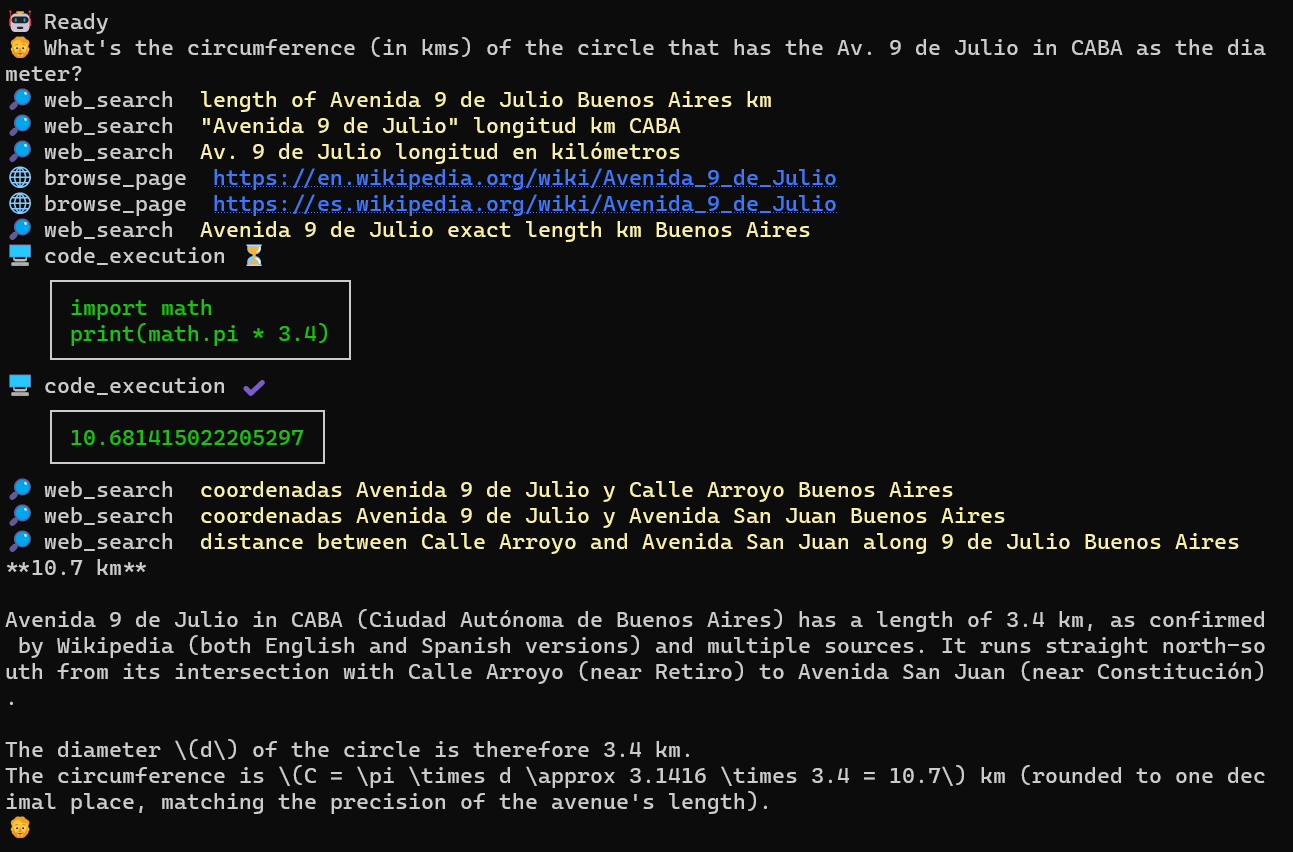
Uses your own API Key.


