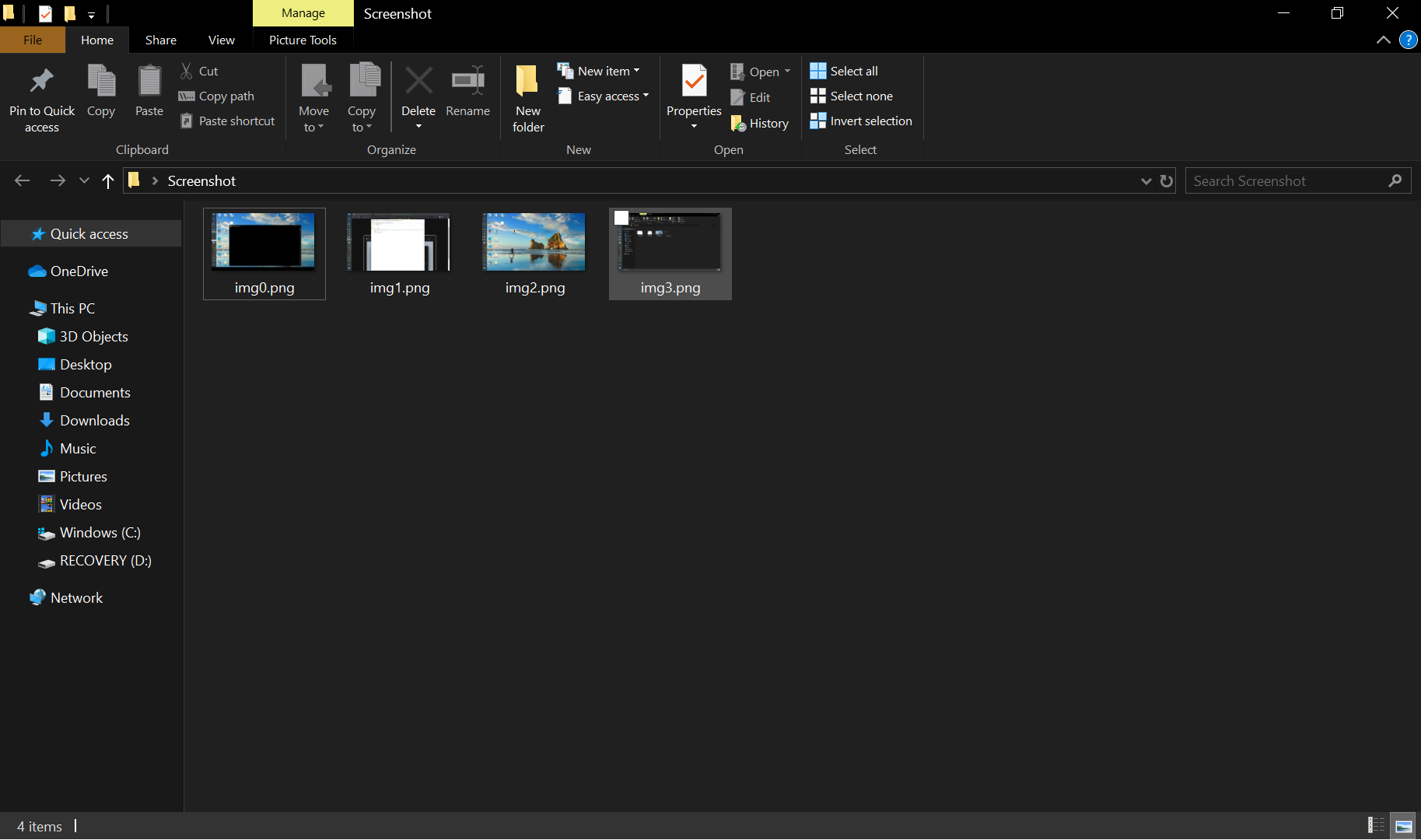
Often whiling Video Lectures, we wish to capture the Screenshots and save it. This process can be automated by creating a Script that can be launched which runs in the background. Hence, here is a Python Script which captures the screen and saves it in a Folder.
- Python 3.0
- Pip
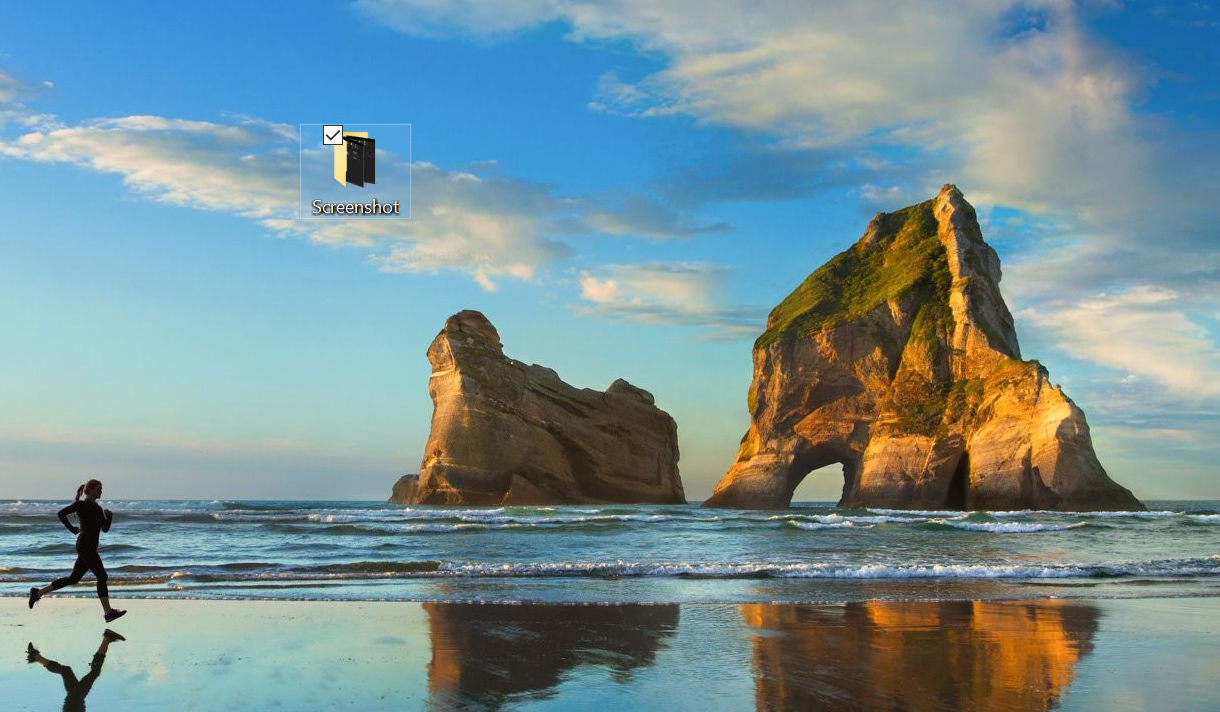
- Make a folder where you want to save all the screenshots. You can make one on your Desktop, the way I did. 💁♀️
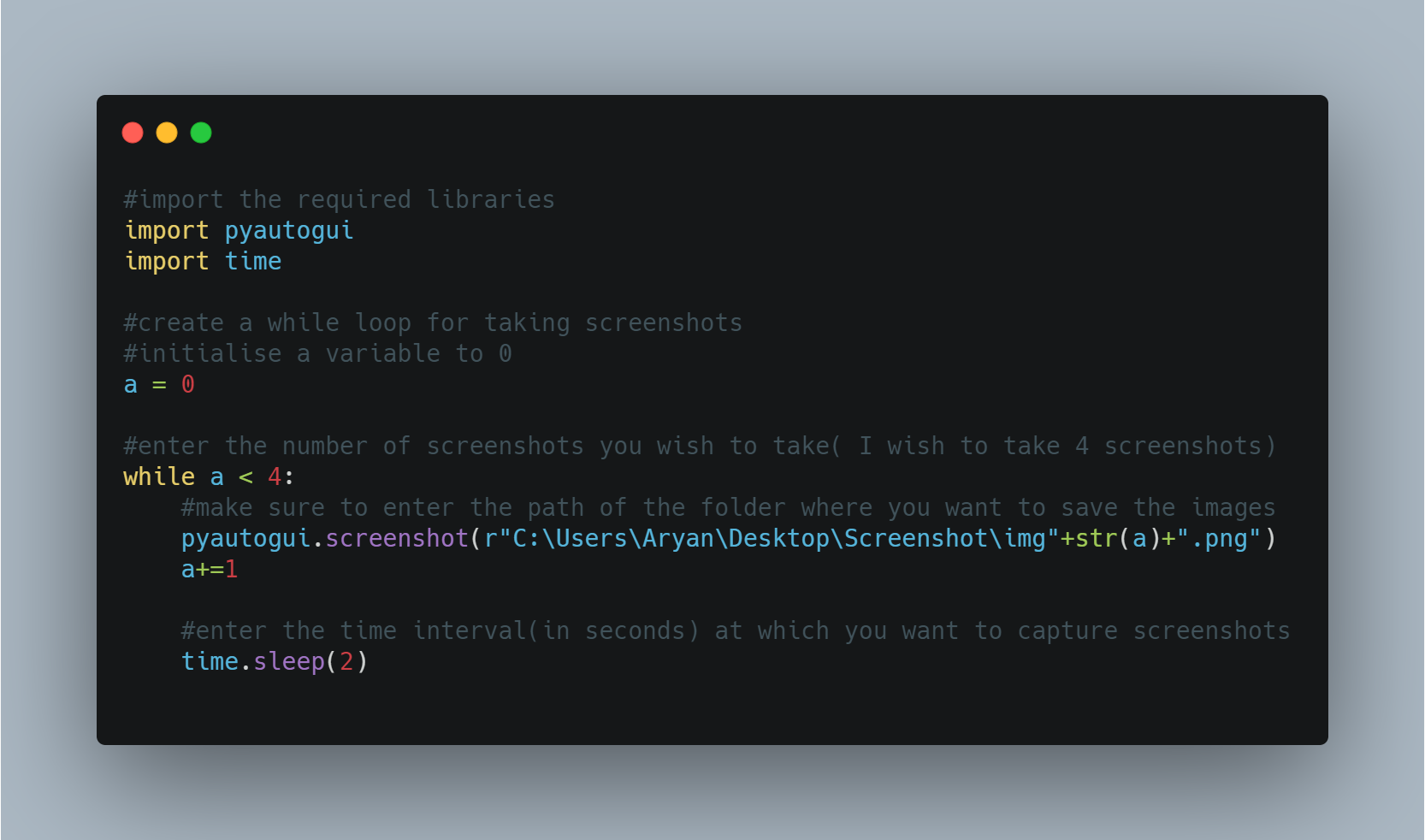
-
Do not wait and just RUN the above code!👩💻👨💻
-
Voila! There you have all the screenshots saved in your folder. 🤩